
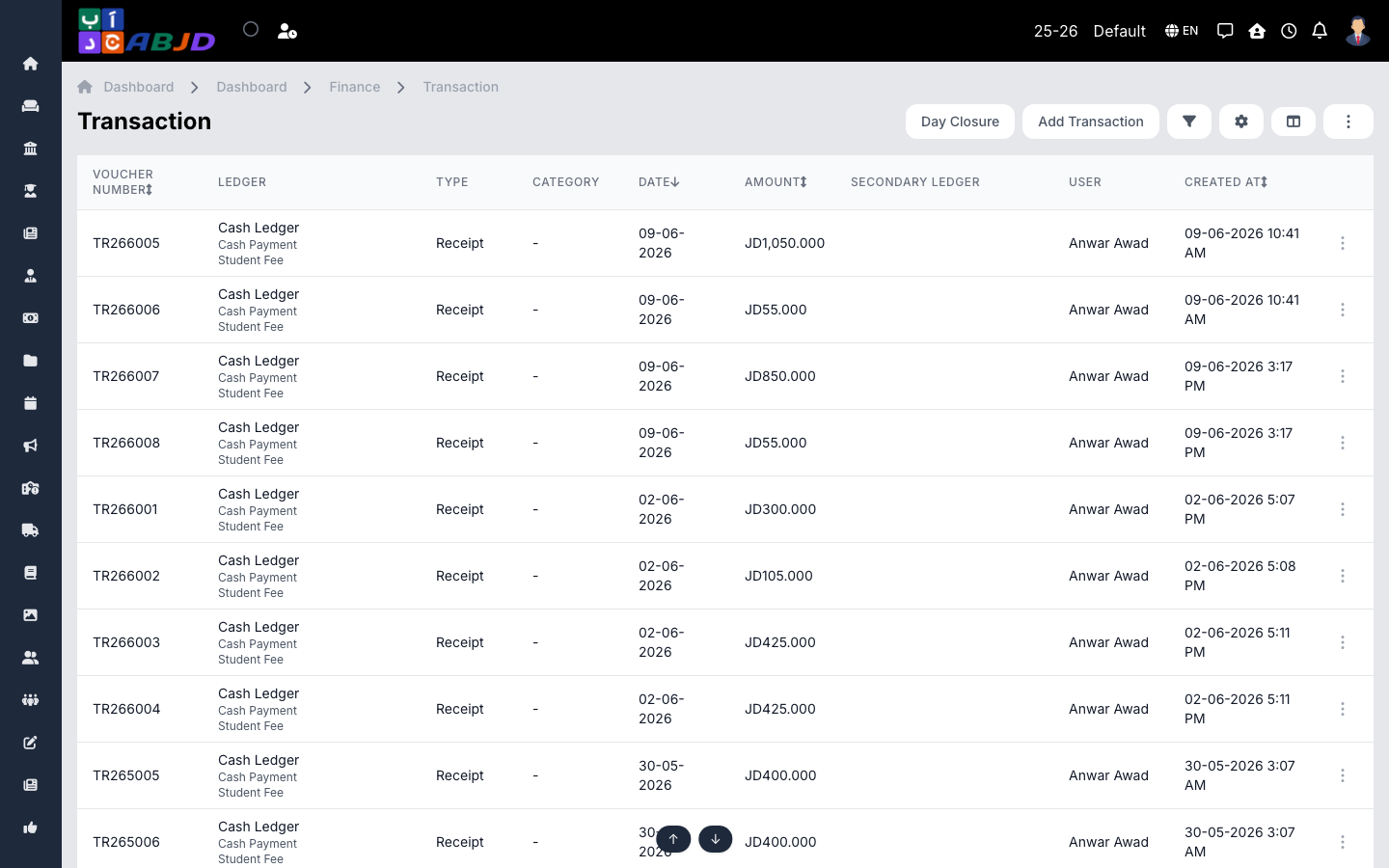
The transactions screen is the general money log: every fee payment, expense, income entry and transfer between accounts appears here. Fee collections are created automatically when fees are paid; other entries are recorded manually.
Open it from the sidebar: Finance → Transaction.
Record a transaction
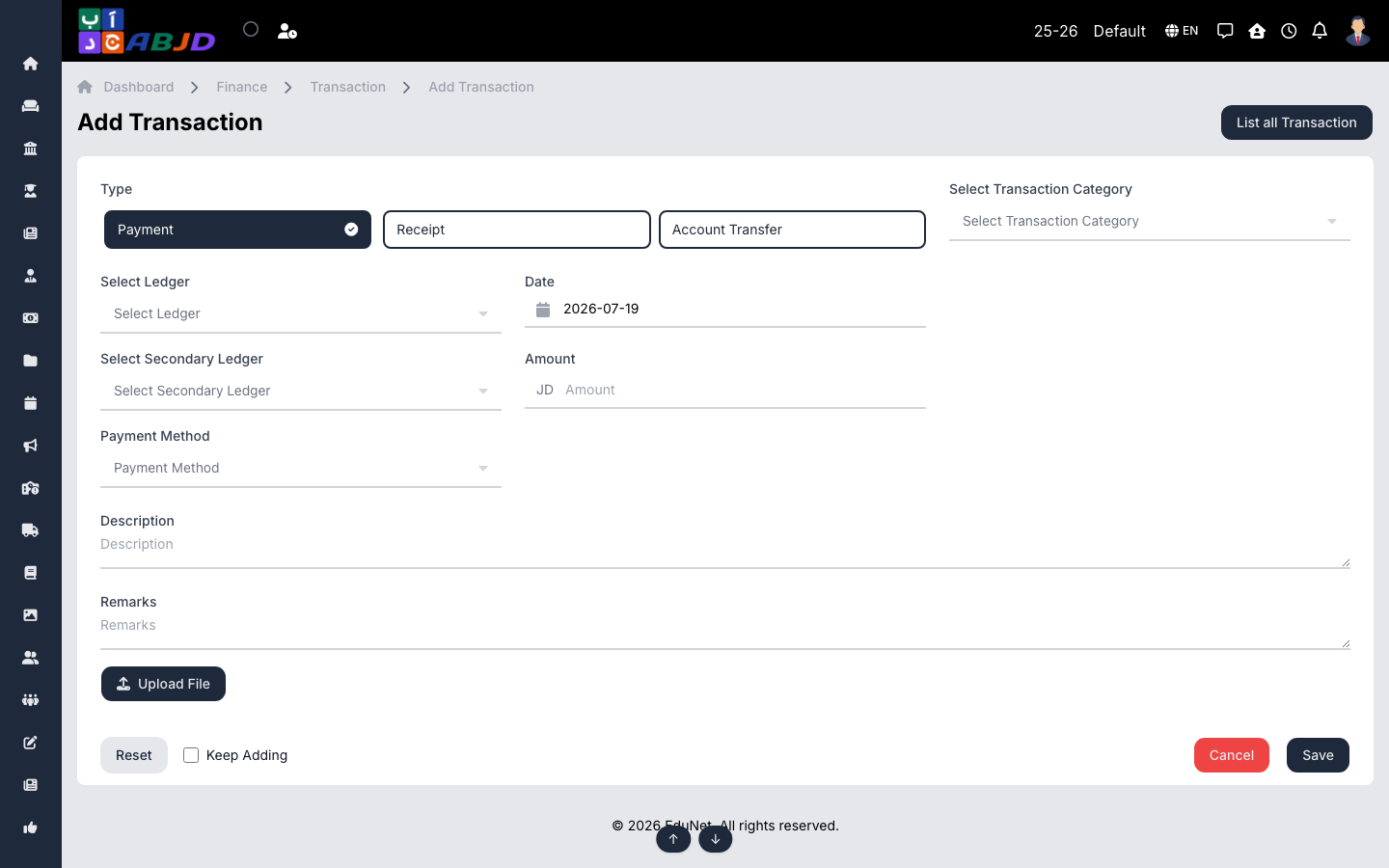
- Click Add Transaction.
- Choose the type:
- Payment — money going out (an expense).
- Receipt — money coming in (income other than student fees).
- Account Transfer — moving money between two ledgers (e.g. cash box → bank).
- Select the ledger (and the secondary ledger for transfers), the date, the amount and the payment method.
- Optionally pick a transaction category, add a description/remarks, and upload a file (invoice, receipt image).
- Click Save. Tick Keep Adding to record several entries in a row.
Row actions
- View — open the transaction with its details and attachments.
- Cancel — void an erroneous entry (kept in the log for audit).
Tip: the Day Book report shows all of a day’s transactions in one view — the daily closing routine starts there.