
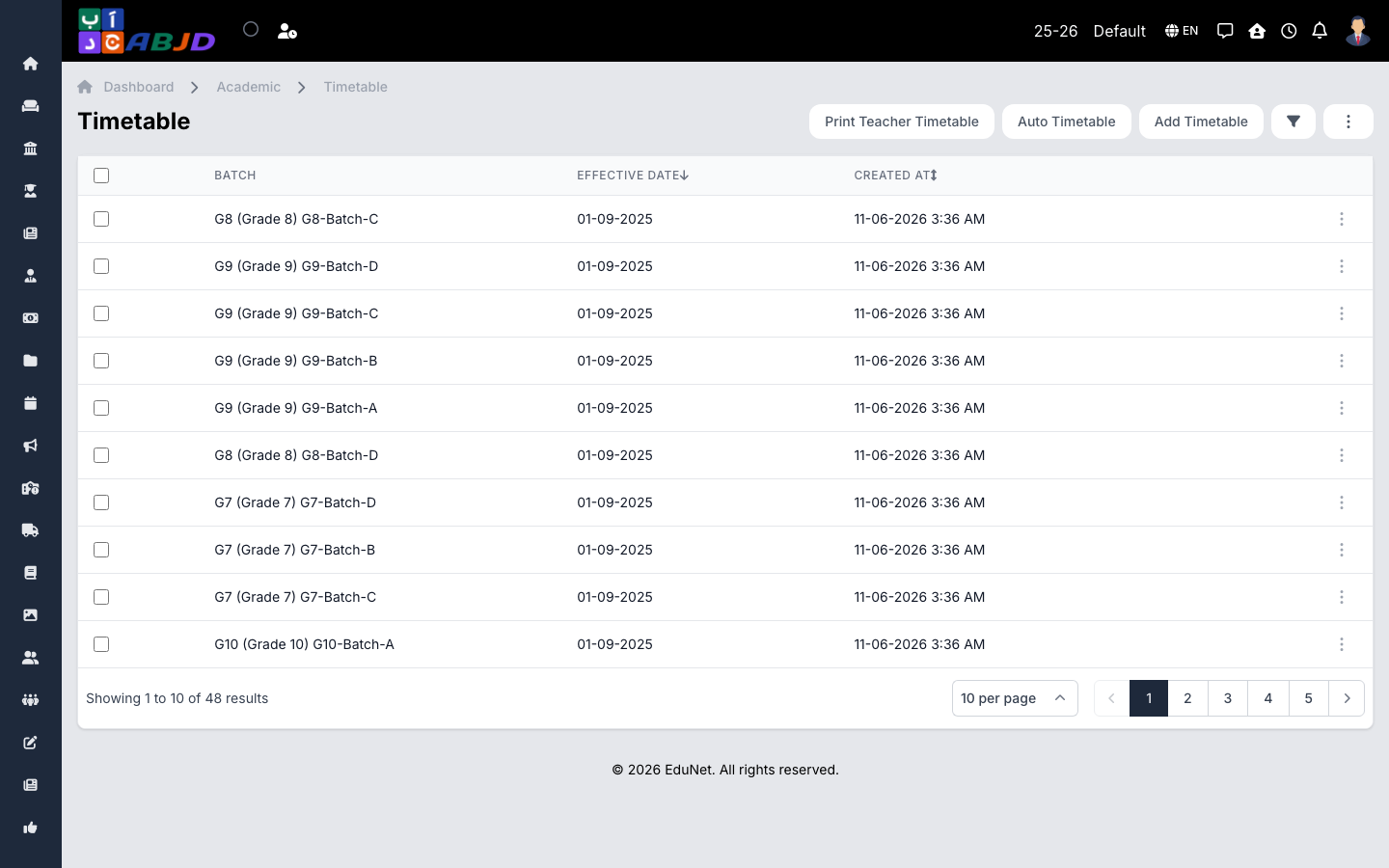
The timetable maps each batch’s week: which subject is taught in which slot on which day, and by which teacher. Teachers see their own schedule under Timetable → Teacher Timetable, and the mobile apps show it to students and parents.
Open it from the sidebar: Academic → Timetable.
Create a timetable
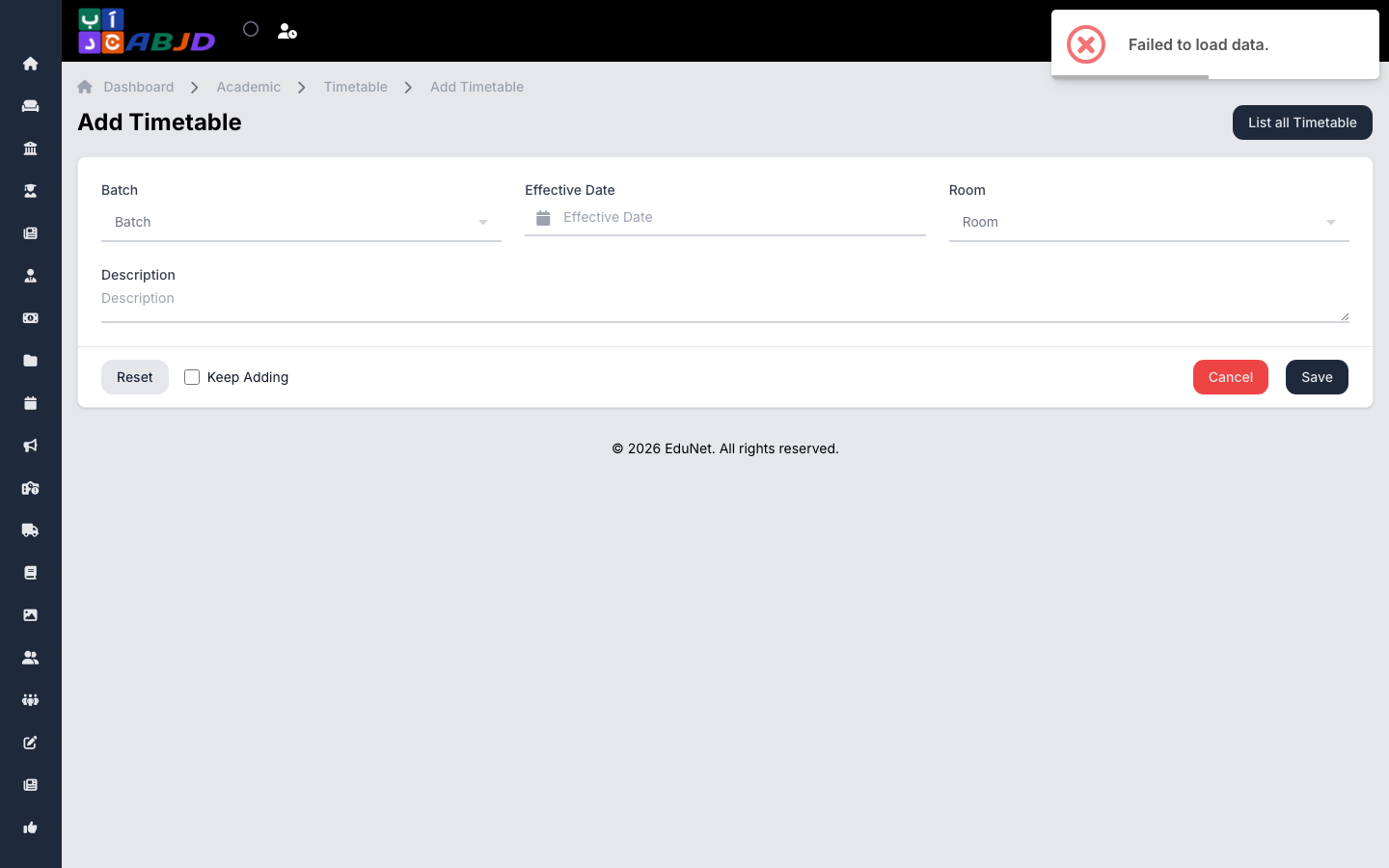
- Click Add Timetable.
- Select the batch, the class timing (bell schedule), and the effective date.
- On the allocation screen, walk through each day and assign a subject (and optionally the teacher/room) to each slot.
- Click Save.
Auto-generate
For larger schools, Timetable → Auto Generate builds draft timetables for many batches at once from subject/teacher constraints, shows an analysis report of conflicts, and lets you preview drafts before applying them.
Row actions
- View / Edit — open the allocation grid again.
- Delete — removes the timetable version.