
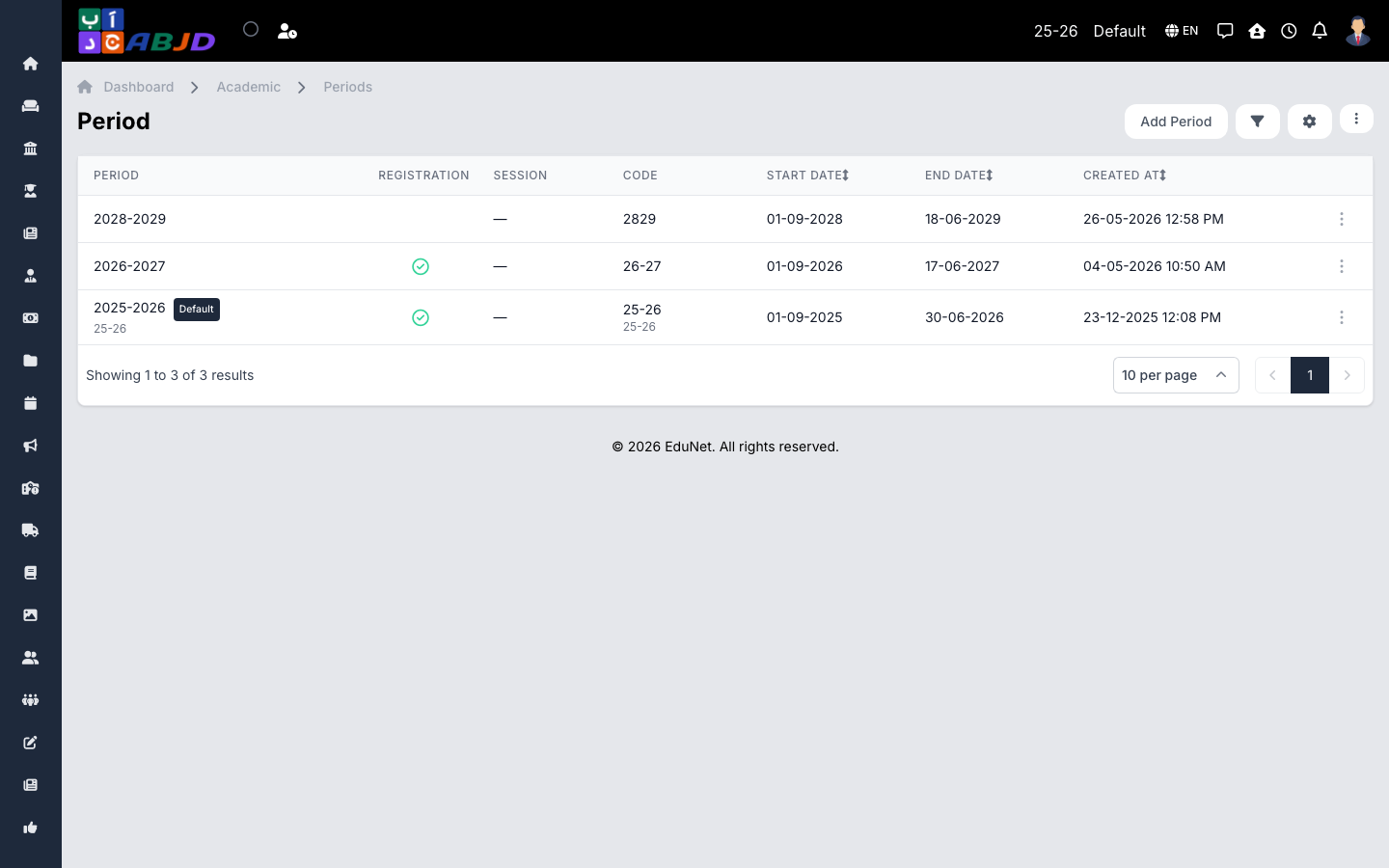
An academic period is a school year or term (for example 2025-2026). Every course, batch, registration, fee, and exam belongs to a period, so creating the period is the first step of setting up a new school year. The period marked Default is the one users land in when they sign in.
Open it from the sidebar: Academic → Periods.
Create a new period
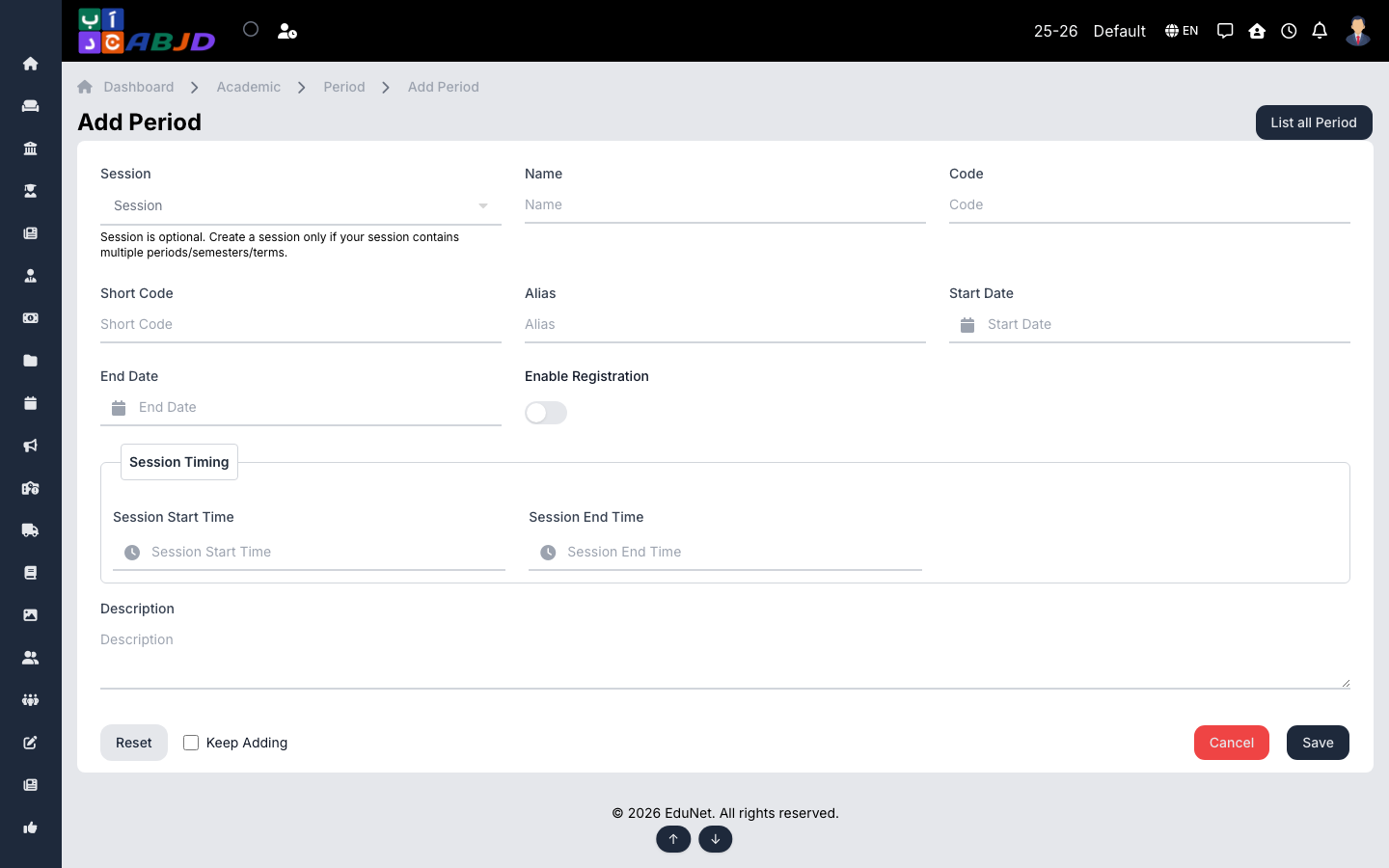
- Click Add Period.
- Enter the name (e.g.
2026-2027), a short code (e.g.26-27), and optionally a shortcode — the code is what appears in the header period selector. - Set the start date and end date of the year.
- Optionally link the period to a session and enable registration if you want the period to accept new student registrations.
- Click Save.
The new period appears in the list immediately, and in the header period selector the next time it is opened.
Row actions
- View / Edit — open or change the period’s details.
- Set as default — make this the period users start in after signing in.
- Delete — only possible while no records (courses, registrations, fees) exist in the period.
Tip: to work inside a different year, you don’t need this page — just click the period code in the header bar and pick the year. All lists and reports then show that period’s data.